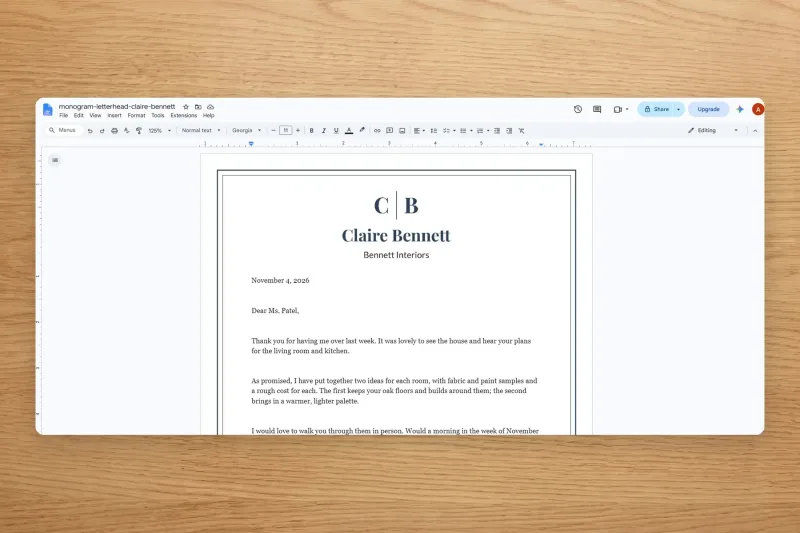
Every NylaLand stationery design downloads ready to use. Letterheads and writing paper come as a Word file and open straight in Google Docs: type your letter on the page and print it with your design and words together, or save it as a PDF. Notepads and to-do lists are PDFs to print and write on by hand. Every design also downloads as JPG pages for Canva.
Open your letter
In Google Docs
- In the editor, press Google Docs. A new tab opens and asks which Google account to use.
- Pick your account. The first time, Google asks you to let NylaLand create the file in your Drive. Press Continue.
- Your letter opens in Google Docs. It's saved in your Google Drive, so you can come back to it any time.
In Microsoft Word
- In the editor, press Word. The file goes to your Downloads folder.
- Double-click it to open it in Word. If a yellow Protected View bar shows, press Enable Editing.
Type your letter
- Click on the page and start typing. Your first line starts under your name.
- Keep going onto a second page. New pages carry the same design, without your name at the top.
- Change the font if you like. Select your text and pick a font and size. Georgia 11 is set for you.
Move where your typing starts
On some designs you may want your words a little further from the flowers. Change the page margins, not the ruler: the ruler only moves the line your cursor is on.
- Google Docs: File → Page setup → Margins. Change Left (or Top, Right, Bottom), then press OK.
- Word: Layout → Margins → Custom Margins. Change Left (or Top, Right, Bottom), then press OK.
Print it or save it as a PDF
- Print: File → Print. Set the scale to 100% (Actual size), not Fit to page. For edge to edge, turn on Borderless in your printer's settings if it has it.
- Save as a PDF in Google Docs: File → Download → PDF document.
- Save as a PDF in Word on Windows: File → Save As, then choose PDF.
- Save as a PDF in Word on a Mac: File → Save As, set File Format to PDF, then press Export.
Good to know
- Your name and design are one picture. They can't be changed in Word or Google Docs. To change a word, a colour or the design, go back to the editor, change it, and make the file again.
- Word shows the design paler while you type. It prints and saves as a PDF in full colour.
- Clicked the top of the page in Word? That opens the header. Press Esc (twice if the design is selected), or press Close Header and Footer.
Prefer to write by hand?
- Press PDF in the editor and print it. Write on it with your favourite pen.
- Or print a stack of blank letterheads from the PDF, put one back in your printer and print a letter typed in a plain document onto it. Try one sheet first so the paper goes in the right way round.
Using Canva instead
- Press JPG in the editor. You get both pages as pictures in one small zip. Open it to get the two pictures.
- In Canva, create a design at your paper size (US Letter 8.5 × 11 in, or A4).
- Upload the first-page picture, right-click it and choose Set image as background.
- Add a text box inside the margins shown under the download buttons in the editor, and type.
- Share → Download → PDF Print to print it or send it.
Join NylaLand
Enjoying Our Creative Journal & Blog?
Become a member today to unlock our full digital stationery vault, seasonal pattern collections, and exclusive perks.